
Meetings
Both sides of a meeting, transcribed live — then notes
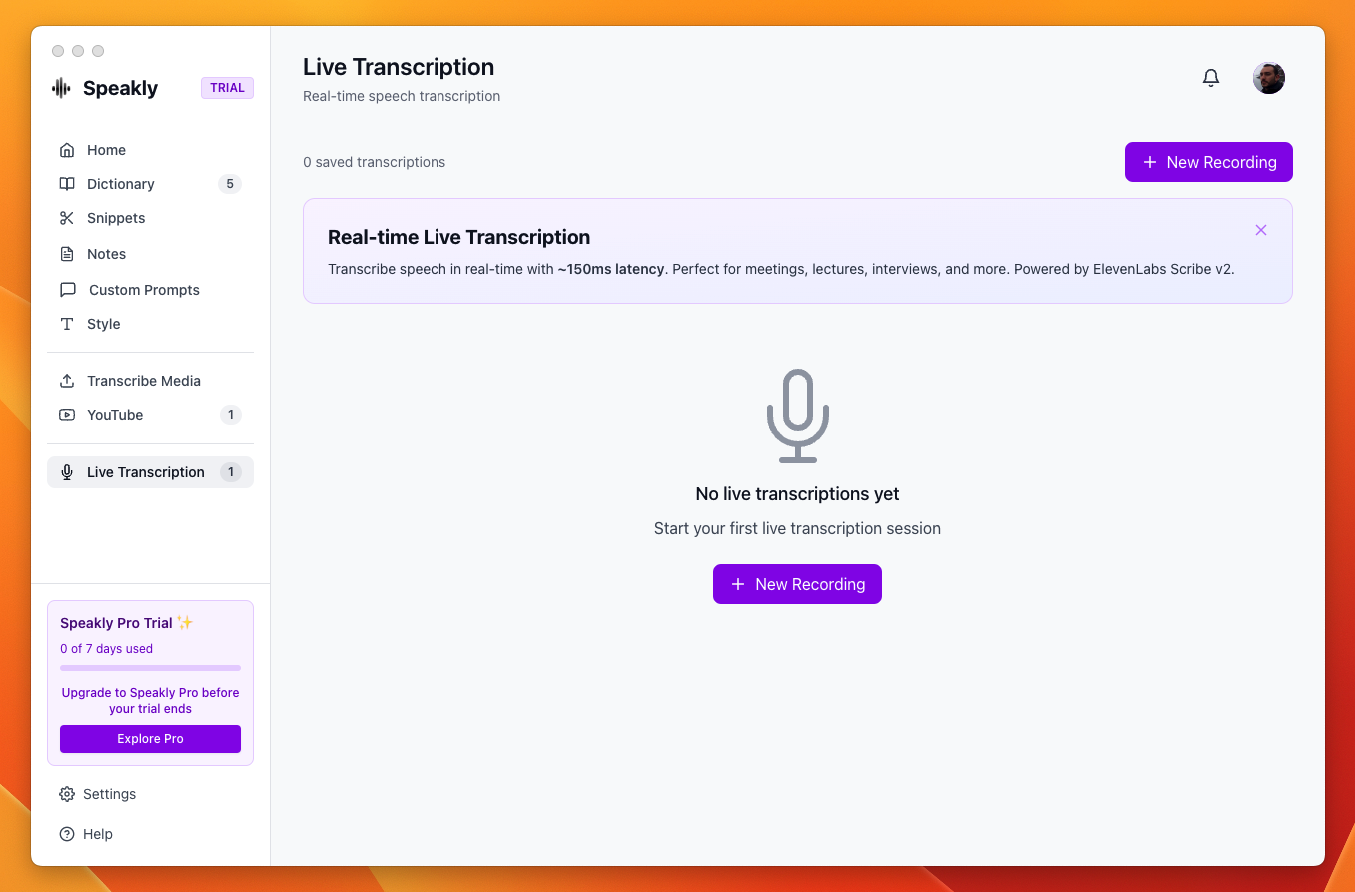
Meetings transcribes a conversation while it happens — your microphone and what your computer plays as two separate tracks, each line saying who spoke — and turns the transcript into notes afterwards. The page was called Live Transcription before.
How to use
- Open Meetings in the sidebar and click New meeting
- Pick the Transcription engine and Model for this meeting — every engine with a key in Settings → Transcription is listed, plus the on-device Local model; Google and ElevenLabs stream with one fixed model, so their Model field is read-only. The choices are remembered for the next meeting and do not change the engine your dictation uses
- Set Speech language, or leave Auto-detect (the default) so the engine picks the language of each phrase — meetings switch languages more often than dictation does
- Type Your name in the transcript if you want your lines saved as
Rodolfo:rather thanYou: - Switch on Also capture system audio for the other side of the call, and leave Keep the audio on if you want to replay lines or re-transcribe later
- Click Start Recording. Pause suspends capture, Resume picks it up again, Stop & Save ends the session
- In the Save meeting dialog, fill in Title and save — with post-processing configured, a title is suggested for you
Two tracks: your mic and the system audio
Speakly can transcribe what your computer is playing — the other participants in a meeting, a video — as a second, fully independent track. That is how you get both sides of a call: your microphone is one track, everything coming out of your speakers is the other. The two tracks run their own voice activity detection and their own transcription requests in parallel, so a loud remote speaker cannot drown out your microphone.
Turning it on
- Open Meetings → New meeting, but do not press Start Recording yet
- Switch on Also capture system audio — "What your computer plays (participants, videos) is transcribed as its own track"
- Press Start Recording. The switch is disabled while a session is running or paused, so it has to be set beforehand
- The choice is remembered between sessions (stored as the
liveCaptureSystemAudiosetting)
The row only appears when system-audio capture is available on your platform and the engine is not the ElevenLabs realtime stream — the Google stream transcribes both tracks.
Platform support and permissions
- macOS: a bundled ScreenCaptureKit helper captures the system output, so macOS asks for Screen Recording permission the first time. If it is denied, the session continues with the microphone only and Speakly shows "System audio unavailable (…) — recording microphone only. Check Screen Recording permission in System Settings → Privacy & Security."
- Windows: WASAPI loopback through the app's display-media handler — no helper binary and no separate permission prompt
- Linux: not supported; the toggle does not appear
What the transcript looks like
- One line per phrase, prefixed with the time into the meeting, counted from 00:00 and skipping any time the recording was paused — e.g.
[04:32], or[01:04:32]past the first hour. In a dual-track session the speaker follows the time —[04:32] You:, or your name if you typed one; a microphone-only session shows the time alone, since everyone in the room is on the same track. Only the ElevenLabs stream, which has no phrases, stays one flowing paragraph. - On screen the prefix is colour-coded by source: purple for your microphone, blue for the system audio.
- A line appears as
…the moment speech starts and fills in when its text arrives, so lines never reorder when one track answers slower than the other - The speaker is written into the saved text (
[04:32] You: …,[04:32] Them: …), so attribution survives saving and copying — and the notes can say who committed to what.
Who is speaking
On the phrase-by-phrase engines, Speakly can tell the other participants apart by the sound of their voices. Each phrase of the system-audio track is measured and grouped with the phrases that sound like it, so the transcript says Speaker 1, Speaker 2 instead of one undifferentiated Them. Your microphone needs none of this — it is always you. Switch it on with Identify speakers in a new meeting; the first time, it downloads a 28 MB model that then runs offline, on your computer.
- Labels appear while you record, usually a moment before the words, and each speaker gets a colour
- When you press Stop & Save, the whole recording is analysed again from the audio. This is what corrects an early mistake — the first phrase of a meeting has nothing to compare itself against. A voice heard for only a few seconds is folded into the speaker it resembles, or left unlabelled, rather than becoming a participant of its own
- A phrase shorter than about a second and a half is not measured at all; it keeps the previous speaker rather than guessing
- The Google stream identifies speakers too, but only once the meeting ends: nothing is cut into phrases on your computer while it runs, so there are no live labels. ElevenLabs keeps Them — that mode does not capture the system audio at all
Correcting the speakers
Voices are grouped by sound, and sound is not identity: one person can end up listed twice after a noisy line, and two similar voices can end up as one. Open a saved meeting: the Who is who? row above the lines plays each voice, and Edit speakers opens the dialog where both are one click. Everything there is undoable — a merge destroys information, since afterwards nothing remembers where the boundary was.
During the meeting, a Speakers button appears in the header as soon as a second voice is found. Naming people while they are still talking is far easier than working it out afterwards from a list of “Speaker 3”, and the names survive the pass that runs at the end — the new grouping is matched back against the voices those names were attached to.
- Rename — click a name and type the real one. The transcript, what you copy and the notes all follow
- Merge — tick two entries that are the same person, choose which name survives in Keep as, and merge
- Listen — plays that speaker's longest phrase, the fastest way to answer "who is this". Needs Keep the audio
- Participants + Re-run — group the meeting again, optionally telling Speakly how many people were on the call. Knowing there were three is better information than any threshold. The number is a ceiling: if the audio holds fewer distinct voices, Speakly keeps the ones it found and says so. Names that still match a voice are carried over; the ones that no longer match are listed rather than vanishing
- Forget voices — deletes this meeting's voice measurements and keeps the names
Voice memory
Naming someone is the only moment Speakly learns that a voice belongs to a person. With Remember participants' voices on — behind the gear button at the top of the Meetings page — that measurement is kept on this computer, and the next meeting names them for you — marked auto, so a wrong guess reads as a guess and is one click from being corrected.
Muting one track
During a dual-track session the header shows a level meter per track. Click the microphone icon to mute your mic, or the speaker icon to mute the system audio: capture stays up, but nothing from that track is transcribed — or billed — until you unmute. Useful when you only want the other participants, or only yourself.
Kept audio: replay and re-transcribe
On the chunked path, with Keep the audio on, Speakly stores the audio of every phrase on this computer, alongside the transcript. Open a saved meeting and hover a line: a play button replays exactly what was said there. The footer's Re-transcribe runs all of that audio through another engine — the local model instead of Groq, Deepgram instead of the local model — and replaces the text; notes are kept. The realtime streams (ElevenLabs, Google) keep no audio. Settings → Data and Privacy → Saved audio files → Delete removes this audio for every meeting at once, along with your dictation recordings; the transcripts stay and the play buttons go.
Nothing is lost if the app closes
While a meeting runs, the transcript is written to disk after every phrase. If the app quits or crashes mid-meeting, the session appears in the list as Recovered · not saved: open it and Keep this meeting to give it a title, or delete it.
Organising your meetings
Above the list, List and Folders switch how the page is laid out, and the choice is remembered for next time. In the Folders view a column on the left holds All meetings, Unfiled and the folders you made, each with a count. A meeting can be in several folders at once: you pick them in the Save dialog when the meeting is kept, change them later with the Folders button in its footer, or tick a few meetings in the list and use Add to folder. Click the title of a saved meeting to rename it, and use Select to tick several meetings and delete or file them together.
- The month dropdown only offers months that actually hold meetings, with how many are in each — so every choice returns something
- The search box matches the title and the transcript, and ignores accents: "reuniao" finds "Reunião"
- Days are headings — Today, Yesterday, then the date — so each meeting shows only its time
- Deleting a folder never deletes meetings. They stay in the list, and land in Unfiled if that was their only folder
- Folders, like everything else here, stay on this computer
Notes
Open a saved meeting and the footer offers Generate notes. Pick a template — which sections the notes have — and the model that writes them: every LLM provider configured in Settings is listed, defaulting to your post-processing provider. The notes are saved with the meeting; Regenerate adds a new version with another template or model, and earlier versions stay selectable.
- Standard meeting notes — summary, decisions, action items, open questions
- Daily standup — per person: done, next, blockers; blockers to escalate; follow-ups
- Project sync / status update — status, progress, risks and issues, next steps, decisions needed
- Client / sales meeting — context, client needs, objections and how they were answered, commitments per side, follow-ups
- Retrospective — what went well, what to improve, actions agreed
- 1:1 / interview — topics, key points per side, agreements
What you get
- Live text: partial updates on the ElevenLabs and Google streams, phrase by phrase on the chunked path
- Speakers: the other participants told apart by voice, renameable and mergeable, remembered between meetings if you ask
- Level meters driven by the real captured signal, one per track, with per-track mute
- Kept audio: replay any line, Re-transcribe with another engine
- Recovery of a meeting the app did not get to save
- Notes with six templates and your choice of model, saved with the meeting
- Ask a question about the meeting and Translate it
- Folders you make yourself, a month filter that only offers months with meetings, and search across titles and transcripts